This is a “quick guide” for BeerSmith 3 users who are looking to upgrade to BeerSmith 4. It provides an guide to get started fast with BeerSmith 4.
Downloading and Installing BeerSmith 4
BeerSmith 4 is installed separately from BeerSmith 3, and installing BeerSmith 4 will not interfere with your existing BeerSmith 3 install. Because BeerSmith 4 has moved to a SQL based database, it is completely separate from your BeerSmith 3 install.
Installing BeerSmith 4 is basically the same process you used for BeerSmith 3.
- Download the Latest version from BeerSmith.com: Here’s the link for the main download page.
- Windows: Run the installer you just downloaded. You will need to install the Windows C++ Runtime the first time which is part of the install package.
- For Mac: Open the DMG file you downloaded and drag the BeerSmith icon to your Application folder. Run the copy from your Application folder after install
Running BeerSmith 4 the First Time
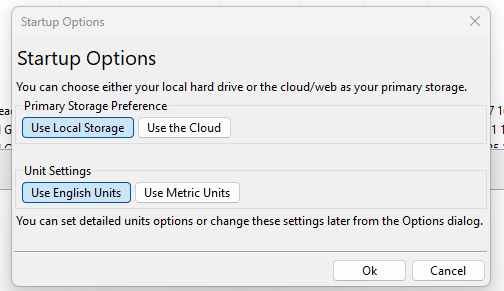
On startup you will be faced with this dialog. If you choose “Use Local Storage” then BeerSmith will primarily store your recipe data on the local hard drive, much like BeerSmith 3 did. If you pick “Use the Cloud” then your primary view will be of your cloud based recipes, profiles and ingredients which is a great option if you use the web based version of BeerSmith a lot. If you don’t know which to choose, pick Local as you can change it later under Tools->Startup Options. Then pick if you are using Metric or English units primarily. You can further customize your units using the Tools->Options dialog.

If you picked the Cloud storage option you will be asked for your BeerSmithRecipes.com login information and after entering that the program will begin downloading your web based/cloud recipes. Other data like profiles and ingredients will be downloaded as you access them.
Importing Your BeerSmith 3 Data
If you primarily work on the web version, you really don’t need to import anything. All of the web based data is available under the Cloud menu or Cloud shortcuts on the bottom left shortcut window. You can access your cloud based recipes, ingredients, profiles, shopping list and inventory by just opening those views.
On windows, if the program detects older BeerSmith 2 or 3 data it will show a message telling you to go to FIle->Import BeerSmith 3 or 2 Data. Running this command will show the directory found and let you import that directory or choose another directory. Next you will be asked if you want to do a Full or Selective import. We strongly recommend that you choose to do a selective import by picking Open Tables in Separate Tabs. The reason for this is that many of the ingredients and profiles have been updated in BeerSmith 4, so overwriting them with older data will limit your access to new data and features.
After selecting Open Tables in Separate Tabs you will see a list of tables to import. We recommend you start by importing your Recipes and Equipment table. You can then go back later, if needed, to grab additional data like fermentation profiles or specialized ingredients as needed. Each of the tables you select here will open up in a new tab. The program will show basic instructions on how to copy/paste data from the open file tabs to your desired view. For recipes, just select and copy/paste your recipes from the open backup recipe tab and paste them into your Local Recipes view. You can do the same with your equipment profiles. Then close the backup tabs.
If you need some old data in the future, like inventory or a custom mash profile, you can go through the same process. Go to File->Import BeerSmith 3 or 2 Data, then pick Open in Separate Tabs and select the tables you want to open up.
On the Mac the process is similar but you first have to create a backup file in BeerSmith 3. The reason for this is that new Mac applications are sandboxed for security and cannot access the data in the old version directly. So the process in this case requires you to first run BeerSmith 3 and go to File->Full Backup to Zip in BeerSmith 3 to create a zip file of your old data. Then you go to File->Full Recover from Zip to open that zip file. Again we strongly recommend you use the open in separate tabs option so you can control which data gets copied. Pick the tables to import. We recommend starting with the Local Recipes and Equipment tables and follow the instructions to copy/paste your data to your local recipes and local equipment view.
Licensing and Activation
If you have a Gold, Platinum or Pro account you can activate BeerSmith 4 using your existing license. If you have a Basic (non subscription) license purchased after July of 2025, you will need to purchase an upgrade to use BeerSmith 4. Activation is much like BeerSmith 3, you just click on the Activate button (or Help->Activate) and use your login and password to activate.
You can try BeerSmith 4 for free for 30 days. If you are an existing user you might want to use the trial period before activating as activating will take up one of your activation slots. All licenses have two or more activation slots, but if you already have BeerSmith 3 on several devices, you may want to wait until you have your program up and running with your data before activating. You can check your existing license and deactivate an old device to free a slot if needed by logging into your BeerSmithRecipes.com account on this license page.
Working with BeerSmith 4
The BeerSmith 4 interface has been streamlined to simplify things where possible, but it maintains a similar layout to BeerSmith 3. The directory tree for recipes is on the top left, showing both local and cloud folders. Shortcuts to the various views and tools are shown on the bottom left. The preview pane at the bottom can also be put to the right or shut off using the View menu.
The layout of buttons has been changed to simplify where possible. For example many whole recipe functions like the inventory and shopping list items have been moved to the Local/Cloud recipes view instead of appearing on the design view. The design views have been streamlined a bit with the adjustment functions on the toolbar, and smaller icons used for less commonly used functions. You can mouse over any button to see a longer version of what it does.
BeerSmith 4 Highlights
Here are some of the highlights of new features:
- Improved Brewing Features: A “Run Checks” button lets you do a quick check of your recipe for possible omissions and errors before brewing. Yeast, water, mash pH, and other brewing models have been updated and improved, and new brewing tools have been added.
- Major Yeast Changes: You can now use liquid volumes or weights to specify yeast quantities, and the yeast models have been completely rewritten to match best professional practices. You can now adjust pitch rate to match your specific recipe, and all of the yeast addons and models have been updated to reflect yeast lab data and recommendations. Dry yeast starters are supported, dry pitch rate in grams/hecto-liter, pitched cells in cells/ml and more.
- Major Water Changes: The water profile tools have been completely revamped and reworked to reflect annhydrous salt additions, updated water chemistry, using pickling lime and MgCl, and estimating water profiles not only in the mash but throughout. Also more options were added for targeting specific additions and phases.
- A Cleaner User Interface: Both the Windows and Mac version now support dark mode, and the entire interface has been redesigned to place the most commonly used functions at your fingertips, and reduce clutter. Many operations were streamlined like adjusting water and pH or creating a New Session which involves archiving your old recipe, bumping the version number and resetting the session data all into one operation.
- Completely Rewritten Backend: The program now runs from a SQL database that is passively backed up as you work instead of the old problematic XML files. This results in dramatically improved data security, reliability and the ability to undo mistakes and retrieve archived or old data. Also it will be separate from BeerSmith 3 so you can use both side-by-side.
- New Inventory and Shopping List: The inventory and shopping list features have been rewritten to make it easier to maintain a shared inventory in the cloud as well as selectively move data from recipes to the shopping list, to inventory and then remove them once the recipe is brewed.
- Improvements Across the Board: Dozens of new tools and features have been added and hundreds of fixes have been added across the platform. A few examples include support for Seltzer recipes, much simpler Mash pH adjustment, proper handling of secondary and tertiary fermentables, new units and much more.
Hopefully this guide helps you get up and running quickly with your existing data. If you want to learn more about BeerSmith or our web based version please check out our main site at BeerSmith.com as well as the blog and video tutorials linked there.